
Samsung Music
Samsung Electronics Co., Ltd.Music & Audio
3.822.34K Reviews
- Version
- 16.2.45.1
- Installs
- 1.00B
- Age Rating
- Teen
Screenshots

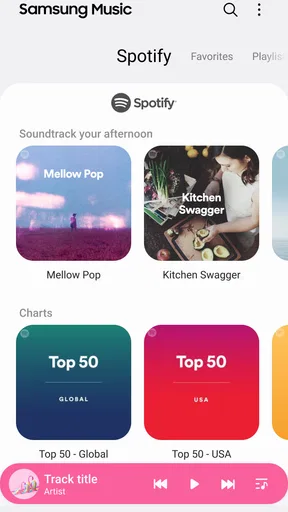
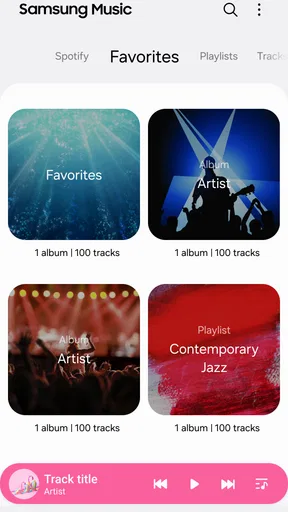
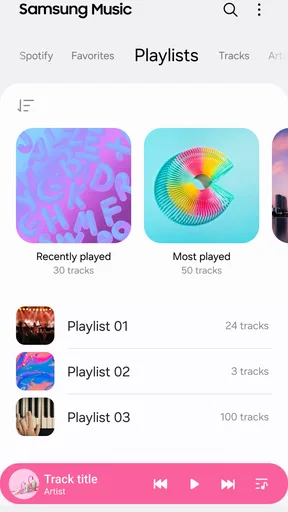
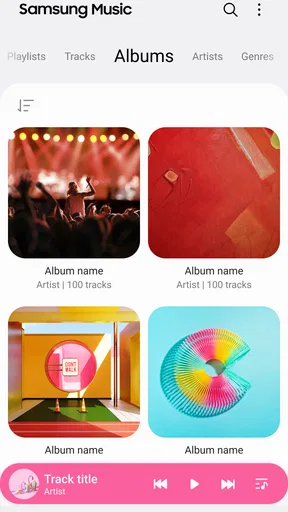
Our Review of Samsung Music
 Analysis by Appyee
Have you ever found yourself in a situation where you just want a simple, effective app to manage your music? Well, that's exactly what I thought when I stumbled upon Samsung Music. I decided to give it a spin and see if it could become my go-to music player. Here's what I found.
My main takeaway is that Samsung Music makes most sense as a straightforward home for music files already on your device. It is a free music and audio app from Samsung Electronics Co., Ltd., and its focus is on playing and arranging a personal library rather than acting as an all-purpose music discovery service. That distinction matters: if you want quick access to tracks you own, its familiar library-first approach is appealing; if you mainly want a huge streaming catalogue and recommendations, a streaming service is likely a better fit.
The app has an average rating of 3.8 from around 816,000 ratings, and it has been installed over a billion times. Those figures suggest it is widely used, though they do not mean every listener will find it ideal. Its Teen content rating is also worth knowing for households choosing apps for younger users. I would treat it as a practical player, not as a promise of a particular music collection or listening experience.
Getting Started with Samsung Music
First things first, downloading and setting up Samsung Music was a breeze. Available on both Android and iOS, the app is free to download, and installation is as straightforward as it gets. Once installed, the app automatically scanned my device for music files, organizing them neatly by album, artist, and genre.
The interface is clean and user-friendly, which is a huge plus for someone like me who appreciates simplicity. With a dark theme by default, it’s easy on the eyes, especially during late-night jam sessions.
For a useful first check, I would look through the library after the scan rather than assuming every file will appear in exactly the right place. A track’s tags and the folders where files are stored can affect how a personal collection is presented, so correcting an album or artist label at the source may be more useful than repeatedly searching for it in the player. This is especially helpful if you have older downloads, recordings, or a mix of albums gathered from different places.
Features That Stand Out
One of the highlights of Samsung Music is its seamless integration with your existing library. I didn’t have to spend ages setting up playlists or importing music; everything was just there, ready to play.
The app supports a wide variety of audio formats like MP3, WMA, AAC, and FLAC, which is great if you have a diverse collection like mine. The sound quality is impressive, with a built-in equalizer that lets you tweak the sound to your liking. Whether you’re into heavy bass or crisp highs, there’s an option for you.
That format support is most useful when a collection has grown over time and includes files from different sources. Instead of converting everything into one format before listening, I can keep a mixed library together. I would still make changes to equalizer settings with the headphones or speaker I use most often, then listen to a familiar track before deciding whether the adjustment actually helps. A bass-heavy preset might make one playlist enjoyable but muddy spoken-word recordings or acoustic music, so there is no single setting I would leave on for every situation.
Another feature I found pretty neat was the ability to manage playlists effortlessly. Creating, editing, and deleting playlists is intuitive. I like grouping my music by mood, and this app makes it super simple to do just that. Plus, it remembers your last playback position, so you can pick up right where you left off without any hassle.
Playlists can also solve a small but common everyday problem: having a library that is too large to browse when you are in a hurry. I would make a short commute playlist, a quieter one for winding down, and a separate mix for a workout, rather than rebuilding a queue each time. If your listening habits change often, keep the lists specific enough to be useful but not so narrow that you spend more time maintaining them than choosing music.
Exploring the Interface
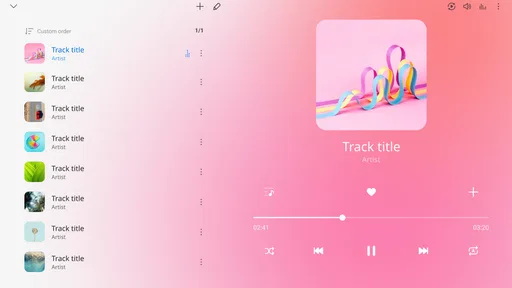
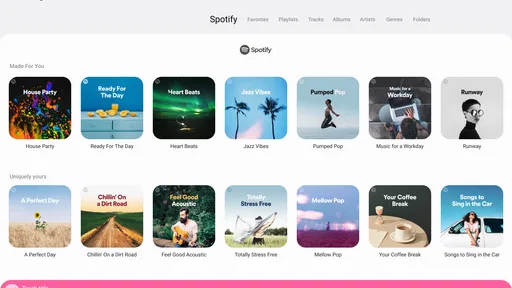
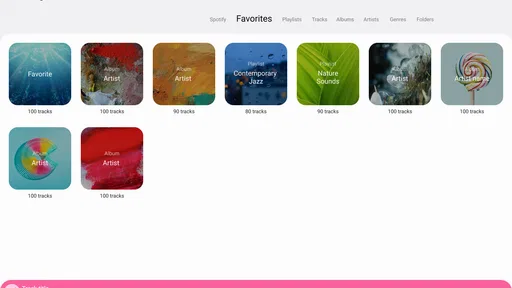
The user interface is smooth and intuitive. Navigating through the app, I found everything where I expected it to be. The main screen gives you quick access to your library, playlists, and folders. You can also search for tracks if you’re in the mood for something specific. The Now Playing screen is minimalistic but effective, showing album art, playback controls, and song details.
What I really appreciated was the inclusion of a widget option for the home screen. It makes it so much easier to control playback without having to dive into the app, especially when you’re in a hurry.
A small workflow advantage comes from choosing the right route into the library: browsing by album suits deliberate listening, while search is faster when I know a track title, and folders can be more practical when my files are already arranged in a particular way. I would use the widget for quick pauses or skips at home, but rely on the app itself when I want to find a specific record or change what I am listening to. That keeps the simple controls convenient without expecting the widget to replace library browsing.
Additional Perks
Samsung Music doesn’t just stop at playing music. It also supports Bluetooth controls, which is perfect for those who love streaming music through wireless speakers or in the car. I tested it with my Bluetooth speaker, and the connection was stable with no noticeable lag.
Another cool perk is the sleep timer function. If you’re someone who likes to fall asleep to music, this feature is a godsend. Simply set the timer, and the app will stop playing after the specified duration.
These details suit routines where the phone is not always in your hand. For example, I can start an album before leaving home, use the connected speaker’s controls for basic playback, and avoid opening the screen while moving around. At bedtime, I would choose a timer when I want music to stop on its own, rather than risk it continuing through the night. The trade-off is that these conveniences improve playback of a prepared library; they do not turn the app into a source for discovering or collecting new music.
Where It Fits—and Where It Doesn’t
In an ordinary day, I might use Samsung Music while getting ready, then switch to a playlist during a drive and use the Bluetooth controls to pause when I arrive. Later, I could pick up an album at home and use the sleep timer at bedtime. That is the kind of simple continuity I value: one local collection, familiar controls, and a few practical ways to listen without adding much setup.
Compared with streaming apps, Samsung Music is a better match when I already have the tracks and want to browse my own albums without making a subscription catalogue the centre of the experience. Streaming services are generally the stronger choice for discovering unfamiliar artists, following recommendations, and accessing music that is not already in my collection. Compared with a bare-bones file player, Samsung Music’s library organisation, playlist tools, equalizer, widget, and sleep timer make it feel more complete for regular listening. The right choice depends less on which app has more features and more on whether your music lives on your device or in an online catalogue.
There are limits to that local-library focus. Someone starting with no music files may open the app and find little to play, while a listener who wants social sharing, constant recommendations, or one place for music from many online services may prefer a different kind of app. I would also avoid choosing it solely because it is associated with Samsung: its usefulness depends on whether it works with the device and music collection you actually use. It is strongest when the library is already yours and you want a convenient way to manage it.
The app first appeared on February 17, 2016, and its current version is 16.2.42.0, with Android 9 as the minimum operating system. Before installing, I would check that the phone meets that requirement and that the music I want to hear is stored where the player can access it. The version detail can help when comparing what is installed on your phone with the current release, but the practical test is whether your own library appears and plays as expected.
The Verdict
After spending some quality time with Samsung Music, I can confidently say it’s a solid choice for anyone looking for a no-fuss music player. It doesn’t have the bells and whistles of some other apps, but it excels in what it sets out to do: play music effortlessly.
If you’re a Samsung user, the integration is even more seamless, making it a no-brainer. But even if you’re not, it’s still a great option worth exploring. So, if you’re on the hunt for a reliable music player, give Samsung Music a shot. You might just find it’s exactly what you’ve been looking for.
I would recommend it most to people with a personal collection who value quick access, simple playlist management, and practical playback controls over discovery features. If you mainly listen through streaming subscriptions or want a service to suggest what to play next, I would choose an app built around that instead. For everyone else, the sensible approach is to try it with a few familiar albums, check that the library is organised in a way that suits you, and decide whether its uncluttered style fits your daily listening.
Privacy and Permissions
See what permissions an app requests and how it handles your data.
- Device & app history
- retrieve running apps, read sensitive log data
- Phone
- read phone status and identity
- Photos/Media/Files
- read the contents of your USB storage, modify or delete the contents of your USB storage
- Storage
- read the contents of your USB storage, modify or delete the contents of your USB storage
- Wi-Fi connection information
- view Wi-Fi connections
- Device ID & call information
- read phone status and identity
- Other
- view network connections, pair with Bluetooth devices, send sticky broadcast, change network connectivity, connect and disconnect from Wi-Fi, full network access, change your audio settings, read terms you added to the dictionary, reorder running apps, control vibration, prevent device from sleeping, modify system settings, install shortcuts, uninstall shortcuts
Verdict
Strengths of Samsung Music
- Intuitive user interface for easy navigation.
- Supports a wide range of audio formats.
- Seamless integration with Samsung devices.
- Customizable playlists and equalizer settings.
- Offline playback for music on the go.
Limitations of Samsung Music
- Limited features on non-Samsung devices.
- Ads present in the free version.
- Requires Samsung account for full access.
- No support for some lesser-known music formats.
- Occasional bugs with playlist syncing.
Other Releases by Samsung Electronics Co., Ltd.
View All
Samsung Calendar
Productivity4.1

Samsung Browser
Communication3.6

SmartThings
Lifestyle4.6

Samsung Email
Productivity4.4
Similar Picks in This Category
View All
YouTube Music
Google LLC4.4

Spotify: Music and Podcasts
Spotify AB4.3

JioSaavn - Music & Podcasts
Saavn Media Limited4.3

Lark Player:Music Player & MP3
Lark Player Studio - Music, MP3 & Video Player4.6

StarMaker: Sing Karaoke Songs
SKYWORK AI PTE. LTD.4.3

Shazam: Find Music & Concerts
Apple Inc.4.8
You May Also Like
View All

Frequently Asked Questions
Is Samsung Music available for all Android devices?
Samsung Music is primarily designed for Samsung devices and is pre-installed on many of them. While it can be downloaded from the Google Play Store, its full functionality is optimized for Samsung smartphones and tablets. Users with other Android devices might experience limited features or compatibility issues.
What audio formats does Samsung Music support?
Samsung Music supports a wide range of audio formats, including MP3, WMA, AAC, and FLAC. This versatility ensures you can enjoy high-quality sound and a variety of music files without the need for additional conversion software. Make sure your music files are in supported formats for the best experience.
Does Samsung Music offer playlist customization?
Yes, Samsung Music allows users to create, edit, and manage playlists easily. You can organize your music by genre, artist, album, or mood. The app also offers the ability to shuffle and repeat tracks, giving you full control over your listening experience and helping you tailor your playlists to your preferences.
Can I stream music online with Samsung Music?
Samsung Music is primarily a local music player, focusing on playing tracks stored on your device. However, it does integrate with Spotify, allowing you to stream your favorite tracks if you have a Spotify account. This integration provides a seamless experience between your offline and online music collections.
Is Samsung Music a free app?
Samsung Music is free to download and use on compatible Samsung devices. While the app itself doesn't require a subscription, some features, like Spotify integration, may require a separate subscription. Always check for any in-app purchases or ads that might affect your usage.
